How to Record Yourself in Claude and Get Feedback
TL;DR: Add PresenterPrep as a connector in Claude once (server URL https://mcp.presenterprep.com/mcp), then say “record a take.” A recorder opens right inside the chat — warm up, record, keep it, and Claude coaches you from your real transcript. No screen recorder, no separate app, no file uploads. Then run it again; the reps are what make you good.
This turns Claude from a tool that writes your script into a tool that hears you say it. You get the two things that actually make you better: reps out loud, and specific feedback on each one.
Step 1: Add PresenterPrep as a connector in Claude
You do this once. After that Claude remembers you.
In Claude.ai:
- Open Settings → Connectors (older builds call it Integrations) in the left sidebar.
- Choose Add custom connector.
- Paste the server URL:
https://mcp.presenterprep.com/mcp - Claude walks you through signing in to your PresenterPrep account. Sign in with Google or a magic link. This links your account so your takes save to the right place.
In Claude Desktop, add this to your config file instead:
{
  "mcpServers": {
    "presenterprep": {
      "command": "npx",
      "args": ["mcp-remote", "https://mcp.presenterprep.com/mcp"]
    }
  }
}
That is the whole setup. You only sign in the first time — every session after this just works.
Step 2: Ask Claude to record you
Once connected, you open the recorder with plain language. Any of these work:
Let's practice. I want to record myself.Record a take of my elevator pitch.Open the recording studio — I want to rehearse my demo.Claude opens Practice Studio, a recorder that renders directly in the conversation. You will see a live camera preview and a mic level meter. Toggle the camera off if you only want to be heard — a caption tells you exactly what is being recorded either way.
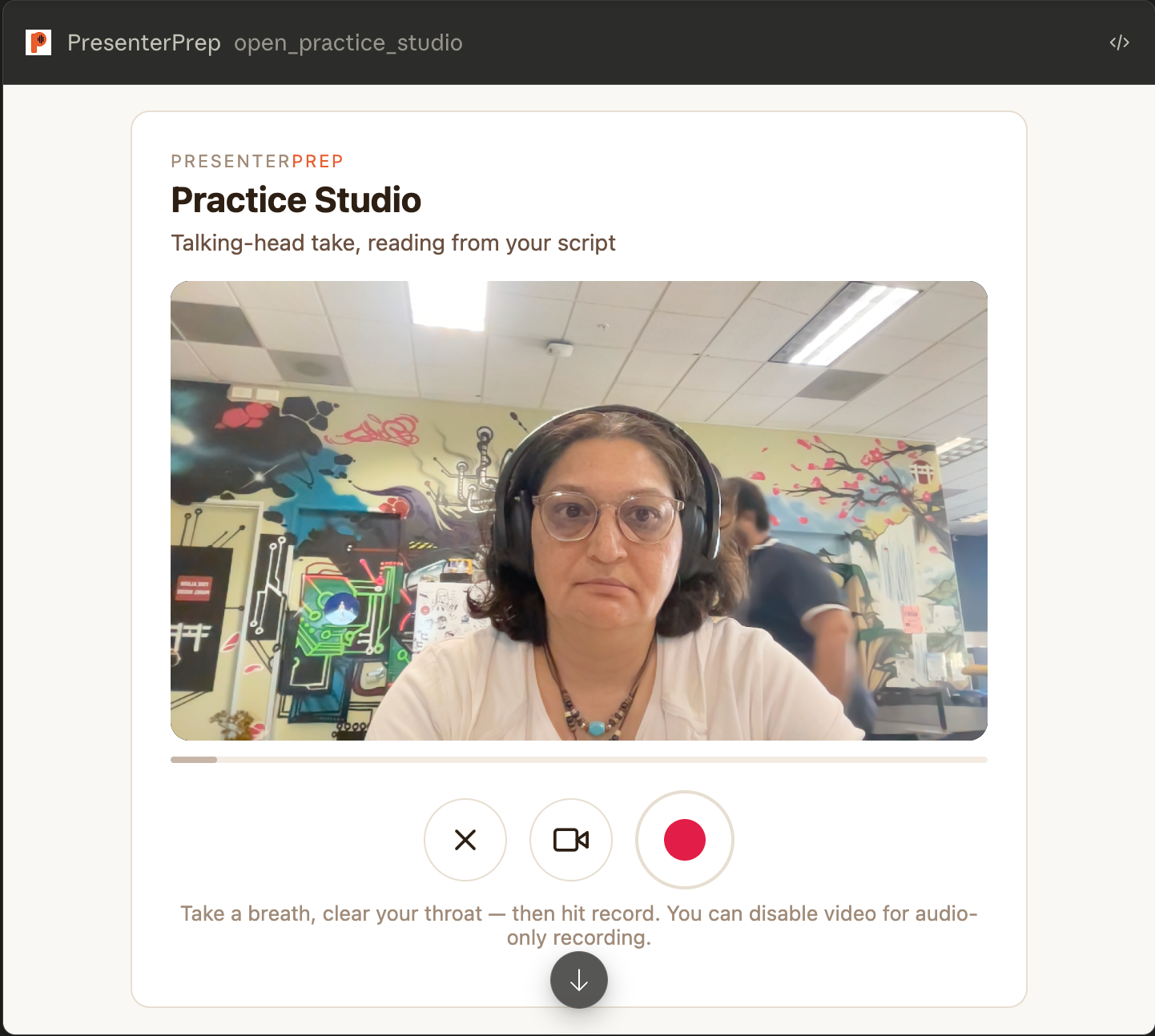
Always warm up first. The studio never drops you straight into recording. You get a mic check, a level meter, and a short countdown so you can clear your throat and take a breath. That warm-up is not filler — the first ten seconds of any take are where nerves live, and warming up moves them off the recording.
Step 3: Record, review, keep or redo
Hit record and say your pitch at normal talking speed. When you stop, you can play the take back right there. If it felt off, one tap redoes it. If it is good, keep it.
The moment you keep a take, it saves and gets transcribed and analyzed. You do not export anything or drag a file anywhere. The recording goes straight into your PresenterPrep account and Claude picks the thread back up.
A few things worth knowing:
- Audio-only is a real option, not a lesser one. Camera is on by default, but one tap switches to voice-only — your initial shows on a dark tile and only your voice records. Plenty of prep is about how you sound: pace, filler words, where you trail off. Record with the camera on and you also get feedback on eye contact and how still or busy your hands are.
- Aim for twenty seconds to eight minutes. Anything shorter does not leave enough to analyze, and takes are capped at eight minutes. A single clean run-through of a pitch or answer is the sweet spot — record the whole thing, not a two-second test.
- Redo freely. Takes are cheap. The whole point is reps, and no one sees the ones you throw away.
Step 4: Get your feedback, then tighten
After you keep a take, Claude reads back what you actually said and coaches you on it. It leads with what worked, then gives you one or two specific things to fix. Because it is working from your real transcript, the notes are grounded — it quotes moments you actually said instead of guessing.
You get a delivery score out of 100 and a short scorecard alongside the notes:
- Pace — your words-per-minute and a plain-language read: conversational, a bit fast, rushed.
- Filler words — a count of the “um,” “uh,” “like,” and “you know” you did not know you leaned on.
- Clarity and energy — how easy you were to follow and how much life your delivery had.
- Strengths and fixes — up to three of each, every one tied to a real moment in your take rather than generic advice.
Most first takes land somewhere in the middle of the range, and that is the point — you are looking for what to move, not a gold star. Then you do it again. Ask Claude to tighten your script based on what it heard, record a fresh take, and compare. Two or three rounds is usually enough. Each pass the words get tighter and saying them out loud starts to feel like yours.
Why record inside Claude at all
You could record on your phone and never listen back. Most people do, which is why most people are surprised by how they come across.
The reason to do it in Claude is that the loop is short enough that you actually run it. Writing, recording, and feedback live in one place. There is no friction between “help me phrase this” and “here is me saying it, what’s weak.” You ask, you record, you hear the truth, you fix it, you go again. That tight loop is the whole difference between reading your pitch and owning it.
And to be clear about what this is not: it is not about memorizing a script word for word. Memorizing makes you stiff, and the first hard question knocks it all loose. What you want is to internalize your key numbers, your key messages, and your through-line — so the words come out as yours even when the room goes sideways. Prep and reps get you there. Memorization does not.
What to practice this way
This flow shines for anything you need to deliver fluently and fairly short:
- Elevator pitches and investor intros
- Demo-day run-throughs and partner-interview answers
- Sales demos and client presentations
- The tricky Q&A answer you keep fumbling
For a full deck walkthrough with live voice coaching and slide navigation, practice directly at app.presenterprep.com — the coach listens, turns your slides on command, and gives you feedback as you go. The in-Claude studio is the fastest path when you just want to say the thing, hear it back, and fix it.
If Claude cannot hear you
If the recorder opens but nothing records, your browser is blocking the microphone. The first time the studio asks, choose Allow. If you dismissed that prompt or clicked Block, open your browser’s site settings for microphone (and camera, if you want video) and set the site back to Allow, then reload the chat. Once you have allowed it, it stays allowed — you will not be asked again.
Frequently asked questions
Do I need to install an app to record myself in Claude? No. You add PresenterPrep as a connector once using the server URL https://mcp.presenterprep.com/mcp, sign in, and the recorder opens inside the Claude chat from then on.
Does this work in Claude Desktop too? Yes. Add the connector to your claude_desktop_config.json as shown above. The recording and feedback loop works the same way.
Can I record just my voice, without being on camera? Yes. The camera is on by default, but one tap switches to voice-only. You still get full delivery feedback on pace, filler words, clarity, and energy.
How long can a recording be? Aim for twenty seconds to eight minutes. Shorter clips do not give the analysis enough to work with, and eight minutes is the cap for a single take.
Where do my recordings go? Straight into your own PresenterPrep account, privately. Nothing is public unless you choose to share it.