The Teleprompter That Records and Scores Your Take
A script reads great on the page. Then you say it out loud and it falls apart. The pacing drags. The filler words creep in. You lose your place, rush the ending, and the line you were proud of lands flat. Most people only find this out in the meeting itself, when it is already too late to fix.
The usual fixes do not help much. A mirror shows you your face, not whether your delivery is landing. Colleagues are rarely free the moment you want to run through it, and when they are, most of them hesitate to give you real criticism. So you practice without ever learning what to change.
PresenterPrep closes that gap: the space between a script that looks good and a delivery that actually holds up. Its teleprompter does three things a plain teleprompter cannot. It follows your voice, records the take, and gives you specific feedback on your delivery. Paste your script, read it out loud, and you get back your timing, the filler words you used, and the parts you skipped or changed. It is a teleprompter and a practice partner in the same screen.
What the recording teleprompter is
It is a teleprompter that listens to you, records you, and tells you how it went.
You paste in your script and it appears on screen, large and easy to read. As you speak, it follows your voice: it highlights each word as you say it, holds still when you pause, and catches up when you jump ahead. There is no scroll speed to set and no pedal to tap.
While you read, it records the take. When you stop, it analyzes what you said and gives you feedback on your timing, your filler words, and the lines you skipped or changed. So you are not just reading a script at a screen. You are practicing it and finding out what to fix, in one pass.
The feedback is specific, not a vague “good job.” It points to the exact lines you can tighten and the habits you can drop, so you know what to work on before the next take.
Why this beats a plain teleprompter
Every other teleprompter has the same blind spot: it never tells you how you did.
A plain one scrolls at a fixed speed, so you spend the take chasing the text or waiting for it, which makes you sound stiff. But the real gap shows up when you finish. You have no idea how it actually went. You just read some words at a screen.
Newer teleprompters go a step further and follow your voice, so the text keeps pace with you instead of scrolling blindly. That fixes the chasing problem. But it leaves the bigger one untouched. When the take is over, the teleprompter still has nothing to say about how you did.
You could record yourself on your phone instead. But a recording only shows you what you did. It does not tell you whether you are getting better. So you run the speech again and again and quietly repeat the same mistakes. Without feedback, more practice just means more reps of the same delivery. You walk in and give the speech no sharper than the first time you said it.
The point of prep is not to read the words. It is to find out what needs fixing before it counts. That is the part the recording and the feedback add.
How it works
Paste your script, read it, and review the take. Three steps.
- Add your script. Paste your text into a new prep session. No formatting needed.
- Read it from the teleprompter. Your script appears large and centered. As you speak, it highlights each word and moves you forward. If you pause, it waits. If you jump ahead, it finds your place. There is no scroll speed to set.
- Review the feedback. When you stop, PresenterPrep saves the take and analyzes it. You see your timing, the filler words you used, and where your delivery drifted from the script.
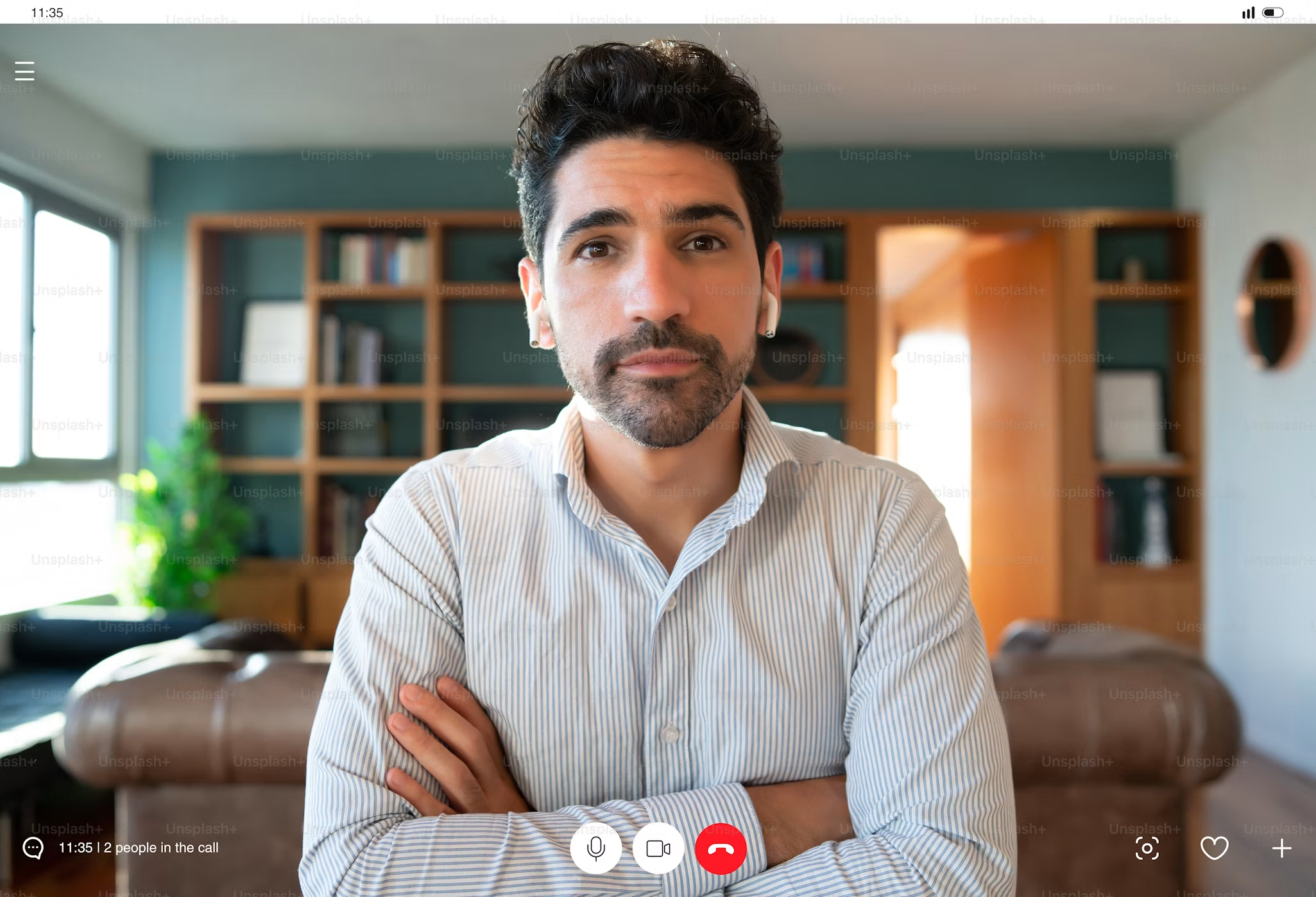
Record with the camera on or off, your choice
You decide whether to be on camera. Both ways work.
Some people keep the camera on from the start to practice their presence along with the words. Others prefer to turn it off and do an audio-only take first, so they can focus on the words and pacing without watching themselves. Neither is the right way. It is whatever helps you prep.
If your nerves are more about being on camera than about the words, starting audio-only is one option that can ease you in. But there is no required order here. The camera toggle is yours to use however you like.
You sound like yourself, not like you are reading
Because the script matches your voice, your delivery stays natural.
You can slow down for the important line. Pause for effect. Take a breath. The text stays with you the whole time. It feels less like reading and more like remembering, which is exactly what you want when the camera is on.
Read it, record it, tighten it
Every take is saved, so you can see your progress across runs.
Read the script, check the feedback, fix the line that ran long or the ask that came out soft, and go again. By the second or third take the delivery is smoother and the timing is tighter, because you can see exactly what changed. That is prep doing its job.
Read your script. Record the take. See what to fix. All before the meeting that counts.
Related: How to use a teleprompter to record a polished pitch